How Do I Restore My HP Laptop to Factory Settings – Complete Step-by-Step Guide for Beginners
Restoring a laptop to factory settings is one of the most effective ways to fix serious software problems, remove viruses, or prepare a device for resale. Many users often search “how do I restore my HP laptop to factory settings” when their computer becomes slow, unresponsive, or full of unnecessary programs.
A factory reset returns your laptop to the same state it was in when it left the manufacturer. This means the operating system is reinstalled, all settings are returned to default, and most installed applications are removed. The process gives the computer a fresh start and can significantly improve performance.
HP laptops include built-in recovery tools that make the reset process relatively simple. Even users with minimal technical experience can restore their device by following the right steps. However, it is still important to understand what happens during the process and how to prepare before starting.
This detailed guide explains how do I restore my HP laptop to factory settings, the reasons for doing it, the different reset methods, and helpful tips to ensure the process runs smoothly.
Understanding Factory Reset on an HP Laptop
A factory reset is a process that removes all user-installed programs, custom settings, and sometimes personal files from the laptop. The system then reinstalls the original operating system and software that came with the device.
When the reset is complete, the laptop behaves like a new computer. You will need to go through the initial setup process again, such as creating a user account, connecting to Wi-Fi, and installing updates.
According to HP documentation, a system recovery reinstalls the original operating system and configures the software that came preinstalled on the device.
This process can solve many software-related problems because it removes corrupted files, unwanted programs, and system errors that might be slowing down the computer.
The following table explains what happens to different parts of the system during a factory reset.
| System Component | What Happens After Factory Reset |
|---|---|
| Operating System | Reinstalled to the original version |
| Installed Programs | Most user-installed apps are removed |
| System Settings | Restored to default factory configuration |
| Personal Files | May be deleted depending on reset option |
| Preinstalled HP Apps | Restored to their original state |
Understanding these changes helps users decide whether a factory reset is the right solution for their problem.
Why You Might Need to Restore an HP Laptop to Factory Settings
There are many situations where performing a factory reset becomes necessary. Most people search how do I restore my HP laptop to factory settings because they are experiencing technical problems or want to refresh their system.
One of the most common reasons is poor system performance. Over time, laptops accumulate many applications, temporary files, and background programs. These can slow down the device significantly. A factory reset removes unnecessary programs and restores the laptop’s speed.
Another common reason is malware or viruses. Malicious software can damage system files, steal information, or cause frequent crashes. Resetting the laptop deletes harmful programs and restores system stability.
Some users also reset their laptops before selling or donating them. This ensures that personal data, passwords, and private files are completely removed from the device.
Other situations where a factory reset may be helpful include system errors, startup failures, and login problems caused by forgotten passwords.
In short, restoring factory settings can help solve many software-related issues while giving your laptop a fresh start.
Important Things to Do Before Resetting Your HP Laptop
Before learning how do I restore my HP laptop to factory settings, it is essential to prepare your device properly. Resetting a laptop can erase important files and installed programs, so taking a few precautionary steps will prevent data loss.
Backup Important Files
The first and most important step is backing up your personal files. Documents, photos, videos, and other data should be saved to an external hard drive, USB drive, or cloud storage.
During a factory reset, the system may delete everything on the computer. Once the reset is complete, it is often impossible to recover lost data.
Connect Your Laptop to a Power Source
Factory reset can take a significant amount of time. If the laptop shuts down during the process because of low battery, it may cause system errors. Keeping the laptop connected to a charger ensures the reset process completes safely.
Disconnect External Devices
Before resetting the laptop, remove external devices such as USB drives, printers, memory cards, and external hard disks. These devices may interfere with the recovery process.
Save Software Keys and Passwords
Some software programs require activation keys after installation. If you plan to reinstall these programs later, make sure you have their product keys or login information available.
Taking these simple precautions can make the reset process much easier and prevent unnecessary problems later.
Methods to Restore an HP Laptop to Factory Settings
HP laptops offer several different methods for restoring factory settings. The correct method depends on whether the operating system is working normally or the laptop cannot start.
The most common ways include:
- Resetting through Windows Settings
- Using HP Recovery Manager
- Using Advanced Startup options
- Resetting through BIOS or recovery media
Each method works in different situations and provides a reliable way to restore the system.
Method 1: Restore HP Laptop Using Windows Settings
The easiest way to reset a laptop is through the built-in Windows recovery feature. This method works best when the system is still functioning normally.
Windows includes a tool called Reset This PC, which allows users to reinstall the operating system without using external software.
General Process
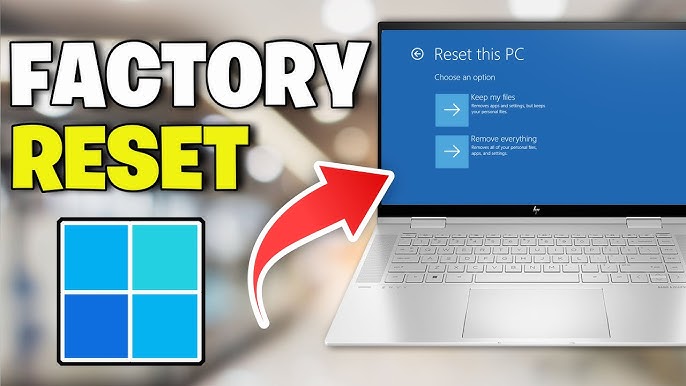
First, open the Windows settings menu. From there, navigate to the recovery section and select the option to reset the computer. The system will ask whether you want to keep personal files or remove everything.
If you choose to remove everything, the laptop will return to its original factory condition.
The reset feature usually provides two main options:
| Reset Option | Description |
|---|---|
| Keep My Files | Removes apps but keeps personal files |
| Remove Everything | Deletes files and restores factory settings |
After confirming your choice, the computer will restart and begin reinstalling Windows. The process may take between 20 minutes and one hour depending on the laptop model and system configuration.
Method 2: Restore HP Laptop Using the F11 Recovery Option
If your laptop cannot start properly, you can still restore it using the HP recovery environment.
HP laptops include a built-in recovery partition that allows users to reset the system by pressing a specific key during startup.
How the F11 Recovery Method Works
When the laptop starts, pressing the F11 key repeatedly opens the recovery manager. From there, users can select troubleshooting options and start the factory reset process.
The general process usually looks like this:
- Restart the laptop.
- Press F11 repeatedly when the HP logo appears.
- Open the recovery environment.
- Select Troubleshoot.
- Choose Reset this PC.
- Follow the instructions to complete the reset.
This method is extremely useful when Windows cannot load or when the system is stuck in a startup loop.
Method 3: Restore the Laptop Using Advanced Startup
Another useful method for answering the question how do I restore my HP laptop to factory settings is through the advanced startup environment.
Advanced startup allows users to access recovery tools when the operating system cannot load normally. It includes several troubleshooting features, including system restore, startup repair, and full reset.
From the advanced startup screen, users can select troubleshooting options and then choose the reset option. This method works similarly to the Windows reset feature but can be accessed even when the system is not functioning correctly.
Method 4: Reset Using BIOS or Recovery Media
In rare cases, the built-in recovery tools may not work because the recovery partition has been damaged or deleted.
When this happens, users can reset their HP laptop using BIOS recovery settings or recovery media. Some HP models allow factory defaults to be restored directly from BIOS settings.
Another option is using HP recovery media or a Windows installation USB drive. These tools reinstall the operating system and restore the laptop to its original condition.
Although this method is less common, it is useful when all other reset options fail.
What Happens After the Factory Reset
Once the factory reset is complete, the laptop will restart and display the Windows setup screen. At this stage, the computer behaves like a new device.
Users will need to go through the initial setup process again. This usually includes creating a new user account, selecting language and region settings, and connecting to the internet.
After setup is finished, it is recommended to install Windows updates and reinstall necessary applications.
The following checklist shows common steps after resetting a laptop:
- Complete Windows setup
- Connect to Wi-Fi
- Install system updates
- Install drivers and software
- Restore backed-up files
Completing these steps ensures the laptop is ready for normal use again.
Common Problems During HP Laptop Factory Reset
Although the reset process is usually straightforward, some users encounter issues during recovery.
One common problem occurs when the reset process stops or fails to complete. In many cases, restarting the laptop and attempting the reset again solves the issue.
Another possible problem is the recovery partition being missing or corrupted. When this happens, the F11 recovery option may not work. In such cases, using recovery media or reinstalling Windows from a USB drive may be necessary.
Sometimes the reset process may appear stuck for a long time. This can happen when the system is reinstalling Windows or cleaning the hard drive. Waiting patiently is often the best solution.
Understanding these potential issues helps users troubleshoot problems more effectively.
Tips to Keep Your HP Laptop Running Smoothly After Reset
Once you have successfully completed the process of how do I restore my HP laptop to factory settings, it is important to maintain the laptop properly.
Installing regular Windows updates ensures that the system remains secure and stable. Updates often include security patches and performance improvements.
It is also recommended to install reliable antivirus software to protect the laptop from malware and other threats.
Avoid installing unnecessary programs that run in the background because they can slow down the system over time. Keeping enough free storage space on the hard drive also helps maintain good performance.
Finally, creating regular backups of important files ensures that valuable data is protected even if future problems occur.
Frequently Asked Questions (FAQs)
How long does it take to factory reset an HP laptop?
A factory reset usually takes between 20 minutes and one hour. The exact time depends on the laptop model and the type of reset selected.
Will factory reset remove viruses?
Yes. A full factory reset deletes most malware and viruses because it reinstalls the operating system and removes infected files.
Can I restore my HP laptop without losing files?
Yes. When using the Windows reset feature, you can choose the Keep My Files option, which removes apps but keeps personal files.
What should I do if the F11 recovery key does not work?
If the recovery key does not work, you may need to use Windows recovery settings or create a recovery USB drive.
Conclusion
Understanding how do I restore my HP laptop to factory settings can help users fix many computer problems quickly and effectively. A factory reset removes unwanted programs, repairs system errors, and restores the laptop to its original condition.
Although the process may sound complicated at first, HP laptops include built-in recovery tools that make resetting the system relatively simple. By backing up important data, choosing the correct reset method, and following the proper steps, users can safely restore their laptops without difficulty.
Whether you want to improve performance, remove viruses, or prepare your laptop for a new owner, restoring factory settings provides a reliable solution that gives your device a fresh start.